In fifteen minutes I had Claude reading my private repos, triaging stale issues, and drafting a pull request review — all through the GitHub MCP Server. No glue code, no scraping the API by hand. The only step I almost got wrong was the token, and it’s the one step every tutorial waves past. So here’s the exact setup, the six things this server actually does well, and the scope you must not skip.
The GitHub MCP Server is GitHub’s official Model Context Protocol server — the open-source bridge (≈30k+ stars as of June 2026) that lets an AI client like Claude read and act on your repositories through real GitHub APIs. By the end you’ll have it connected, scoped safely, and doing useful work.
- The GitHub MCP Server is GitHub’s official MCP bridge — it lets Claude read and act on your repos through real GitHub APIs with no glue code.
- The token is the one step everyone gets wrong. Create a fine-grained personal access token scoped to only the repos and permissions you need.
- Trim the enabled toolsets so Claude picks the right tool instead of guessing across dozens of them.
- It’s genuinely useful for issue triage, PR-review drafts, and repo Q&A — just mind token scopes and rate limits.
What We’re Building#
We’re connecting Claude Desktop to your GitHub account so it can answer questions about your code and take actions on your behalf — summarising a repo, triaging issues, drafting a PR review — using GitHub’s maintained server instead of a brittle script.
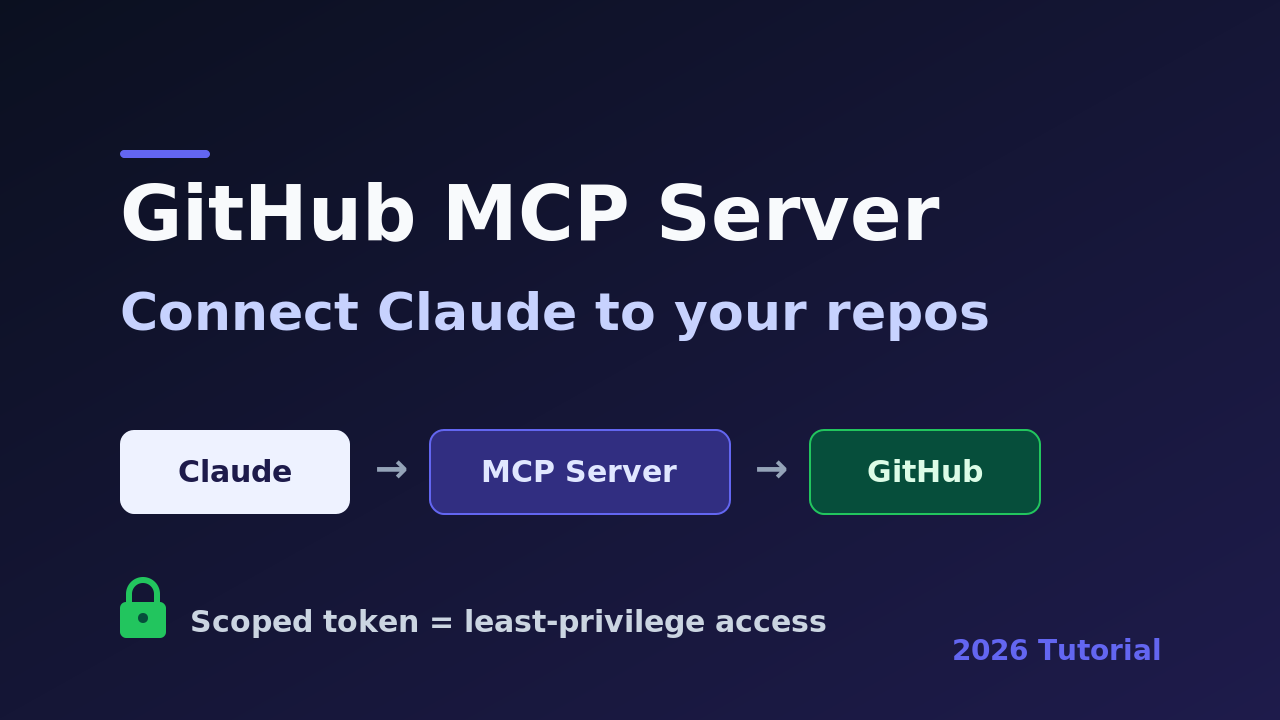
The diagram shows the whole path: Claude talks to the MCP server over stdio (a plain input/output stream — MCP’s local transport), the server calls GitHub’s REST and GraphQL APIs, and your personal access token decides exactly which repositories it can touch. Nothing reaches GitHub that your token doesn’t explicitly allow.
MCP (Model Context Protocol — a standard way for AI clients to discover and call external tools) means Claude doesn’t need bespoke GitHub code. The server advertises its tools; Claude picks the right one. If you want the bigger picture first, my What Is an MCP Server? guide covers the protocol end to end.
Prerequisites / What You Need#
Before the fun part, get these three things in place. The setup itself is a five-step flow, shown below.
- Docker Desktop, installed and running. The server ships as a container image, so Claude launches it on demand. (Get Docker if you don’t have it.)
- Claude Desktop (the desktop app, not the web version) — it’s what loads local MCP servers.
- A GitHub account with at least one repo you’re happy to let Claude read.
There are two ways to run this server: GitHub’s remote hosted endpoint (https://api.githubcopilot.com/mcp/) and the local Docker image. The remote endpoint uses OAuth through a GitHub App, which Claude Desktop doesn’t cleanly support yet, so this tutorial uses the local Docker route — it’s the path that actually works in Claude today.
If you’ve never wired an MCP server into Claude at all, read my Claude MCP setup walkthrough first; it covers where the config file lives and what to do when a server won’t show up.
Step 1 — Create a Fine-Grained Token (Do This Right)#
Start here, not with the config, because this single step is where security is won or lost. Go to GitHub → Settings → Developer settings → Personal access tokens → Fine-grained tokens → Generate new token.
Use a fine-grained token, never a classic one. Classic tokens are all-or-nothing across every repo you own; fine-grained tokens let you pick exact repositories and exact permissions. Set:
- Repository access: “Only select repositories” → pick the one or two you actually want Claude to see.
- Permissions: Contents (Read), Issues (Read and write), Pull requests (Read and write), Metadata (Read, auto-selected). Add more only when a workflow needs it.
Copy the token (it starts with github_pat_) somewhere safe — GitHub shows it once. Grant the least you can live with; you can always widen it later. I started read-only, confirmed Claude could see the repo, then added write access for issues once I trusted it.
Common mistake: reaching for a classic token “just to get it working.” A classic token hands the server every repo and most of your account. If it ever leaks through a misconfigured client, the blast radius is your whole GitHub. A scoped fine-grained token limits the damage to two repos.
Step 2 — Add the Server to Claude’s Config#
With the token in hand, tell Claude how to launch the server. In Claude Desktop, open Settings → Developer → Edit Config. That opens claude_desktop_config.json (on macOS it lives at ~/Library/Application Support/Claude/; on Windows at %APPDATA%\Claude\). Add a github entry under mcpServers:
{
  "mcpServers": {
    "github": {
      "command": "docker",
      "args": [
        "run",
        "-i",
        "--rm",
        "-e",
        "GITHUB_PERSONAL_ACCESS_TOKEN",
        "ghcr.io/github/github-mcp-server"
      ],
      "env": {
        "GITHUB_PERSONAL_ACCESS_TOKEN": "github_pat_your_token_here"
      }
    }
  }
}
Here’s what each line does. command plus args tell Claude to run the official image (ghcr.io/github/github-mcp-server) in a throwaway container — -i keeps stdin open for stdio, --rm deletes the container when Claude closes. The -e GITHUB_PERSONAL_ACCESS_TOKEN flag passes your token into the container, and the env block supplies its value. Save the file and fully restart Claude Desktop — quit it completely, not just close the window, or the new server won’t load.
If you already have other servers in the file, just add "github": { ... } as another key inside mcpServers — don’t create a second mcpServers block.
Step 3 — Trim the Toolsets (So Claude Picks Better)#
By default the server exposes a lot of tools, and that’s the second thing most setups get wrong. The more tools you load, the more context they eat and the more often the model fumbles tool choice. You can switch on only the toolsets you need with one environment variable, GITHUB_TOOLSETS:
{
  "mcpServers": {
    "github": {
      "command": "docker",
      "args": [
        "run", "-i", "--rm",
        "-e", "GITHUB_PERSONAL_ACCESS_TOKEN",
        "-e", "GITHUB_TOOLSETS",
        "ghcr.io/github/github-mcp-server"
      ],
      "env": {
        "GITHUB_PERSONAL_ACCESS_TOKEN": "github_pat_your_token_here",
        "GITHUB_TOOLSETS": "repos,issues,pull_requests,code_security"
      }
    }
  }
}
Those four toolsets — repos, issues, pull_requests, code_security — cover almost everything an individual developer wants. Other valid values include actions, context, and the catch-all all.
There’s also a dynamic toolsets mode where the server starts lean and turns groups on when the model asks — handy once you’re comfortable, but the explicit allow-list above is easier to reason about while you learn. In my testing, dropping from “all tools” to these four made Claude noticeably quicker to reach for the right one.
Step 4 — Six Things the GitHub MCP Server Does Well#
This is where it pays off. After the restart, you’ll see GitHub’s tools available in Claude (look for the tools/connectors indicator). Here are six prompts I use weekly, each backed by a real tool the server exposes:
- Summarise a repo: “Give me a high-level overview of what
myorg/myrepodoes and its main modules.” Great for inheriting unfamiliar code. - Triage issues: “List open issues in
myrepowith no label, and suggest a label and priority for each.” It reads, you decide. - Draft a PR review: “Review PR #142 in
myrepoand flag anything risky.” You still approve — it drafts. - Search code: “Find every place we call the old
chargeCardfunction acrossmyrepo.” Faster than grepping a repo you don’t know. - Explain a change: “Summarise what changed between the last two releases of
myrepo.” - Draft release notes: “Write release notes from the merged PRs since tag
v1.4.0.”
The pattern that matters: this server reads and proposes, but you stay the approver. Claude can open an issue or comment on a PR if your token allows writes, but treat those actions the way you’d treat a junior teammate’s first week — useful, supervised.
Use a fine-grained token limited to the specific repos the agent needs — never a classic token with full repo scope. If the token leaks, the blast radius is exactly what you granted, so keep it small.
Step 5 — Token Scopes, Limits, and Gotchas#
A few things will trip you up if nobody warns you, so here they are. First, least privilege is not optional — if Claude only needs to read, don’t grant write. Fine-grained tokens also expire; set a sensible expiry (90 days is reasonable) and rotate rather than living with a forever-token.
Second, watch what the server can’t do. It works against GitHub’s APIs, so it’s subject to rate limits — a huge “review every PR in the repo” request can hit them. It also can’t see repositories your token didn’t select, which is a feature, not a bug.
Common mistake: pasting the token into a public gist or committing the config file to a repo. Your
claude_desktop_config.jsonnow contains a live credential — keep it out of version control. If you ever leak it, revoke the token in GitHub settings immediately; that instantly cuts the server off.
If you’d rather understand the server side deeply — how these tools are defined, typed, and authenticated — my Build an MCP Server in Python guide builds one from scratch with OAuth.
Testing It + Common Errors#
To confirm it works, ask Claude something only the GitHub MCP Server can answer: “Using the GitHub tools, list my five most recently updated repositories.” If you get real repo names back, you’re connected. Three errors I actually hit:
- “Server not showing up”: you didn’t fully quit Claude, or the JSON has a trailing comma. Validate the file and restart completely.
docker: command not foundor pull errors: Docker Desktop isn’t running, or you have a stale registry login —docker logout ghcr.ioand retry; the image is public.- “Bad credentials” / 401: the token is wrong, expired, or lacks access to that repo. Regenerate a fine-grained token and double-check the repository selection.
What to Build Next#
You now have AI on your repos, scoped safely. I’d extend this in two directions. First, lock it down further — review exactly what your token can touch and set an expiry, because the moment you grant write access the security questions get real. Second, wire the GitHub MCP Server’s tools into your own agent rather than just Claude Desktop, so a Python app can call them programmatically.
Which workflow did you turn on first — issue triage or PR review? Tell me in the comments, and say whether you went read-only or granted writes.
Read next: What Is an MCP Server? Complete Guide for Developers (2026) — the protocol explained end to end. Related: Claude MCP Setup: Connect a Server to Claude Desktop · Official repo: github/github-mcp-server.