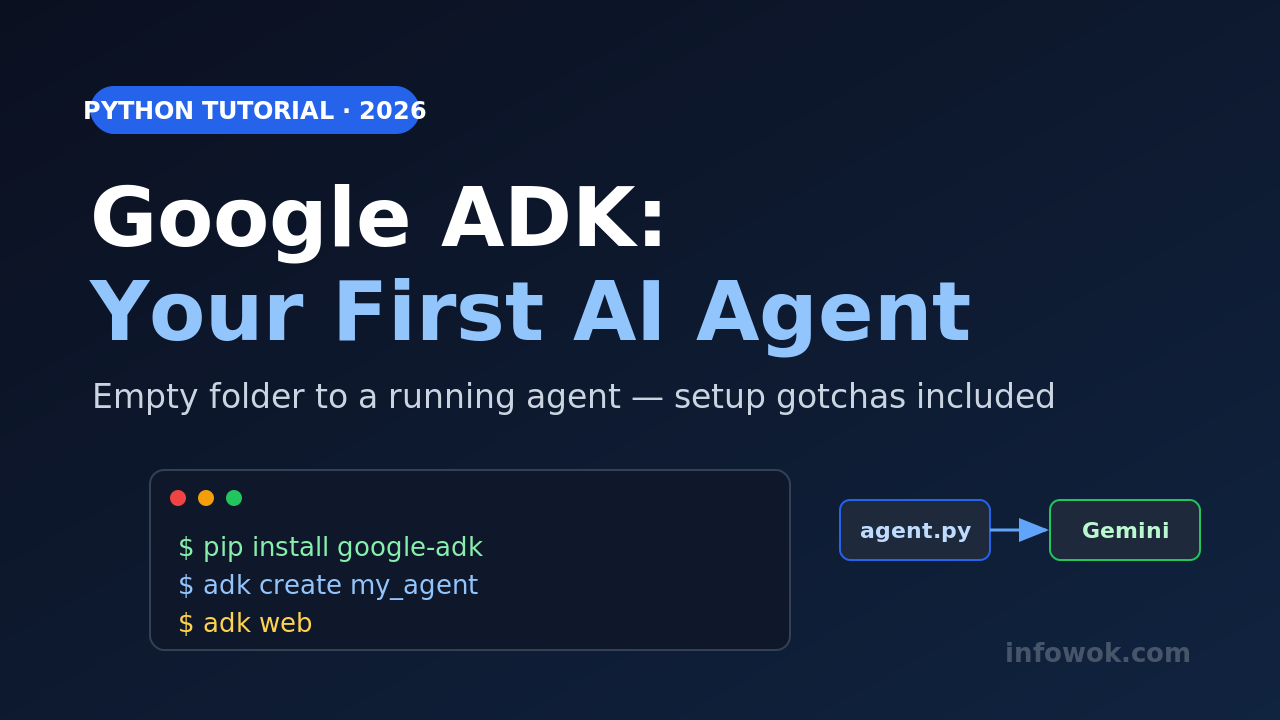
You installed Google ADK, opened your terminal, and hit the part every tutorial skips: where does this project actually live, and how does Google ADK find your agent? That gap is why so many first agents never start. This Google ADK tutorial closes it — you’ll go from an empty folder to a running agent, with the setup gotchas spelled out instead of glossed over.
Most AI agents tutorials skip straight to the code and leave you stuck at the terminal. By the end of this one you’ll have a working agent you can chat with in your browser, a version that checks its own work, and one that reaches into an MCP server for real tools.
- You can write a Python function with a docstring and run a terminal command — see the Python for AI agents primer
- A free Gemini API key from Google AI Studio (no Google Cloud needed to start)
- New to agents? Skim what an AI agent is first
- ADK is a code-first Python toolkit: you write a
root_agentwith an instruction and tools, and ADK runs the loop for you. - The setup that actually works:
uvfor the environment,adk createfor the layout, a Gemini key in.env, thenadk web. - You’ll go beyond “hello agent”: a self-correcting validation loop and a live MCP connection, not just a single prompt.
What Google ADK Is — and Where It Fits#
Google ADK (Agent Development Kit) is an open-source Python toolkit for building AI agents, and it hit version 2.0 GA in 2026. The idea is simple: you describe an agent as a normal Python object — a name, a model, an instruction, and a list of tools — and ADK runs the agent loop, the tool calling, and the session state for you.
That diagram is the whole mental model. You own the box on the left; ADK owns the runtime in the middle. Where it fits against other frameworks comes down to taste: ADK is the most opinionated of the popular options, with a built-in dev UI and first-class Gemini support, where LangGraph, CrewAI, and AutoGen trade that polish for more control or a different agent model. If you’re already in the Google ecosystem, ADK removes the most setup friction. If you want to understand what any of them do underneath, that’s a plain Python loop — which is exactly what an AI agent is once you strip the framework away.
Setup That Actually Works#
Here is the setup most tutorials rush past. I use uv (a fast Python package manager) because it creates the environment and installs in seconds, but plain pip works the same way.
# 1. Create and activate a virtual environment
uv venv
source .venv/bin/activate        # Windows: .venv\Scripts\activate

# 2. Install ADK
uv pip install google-adk
You need Python 3.10 or newer. With ADK installed, let it scaffold the project for you instead of guessing the layout:
adk create my_agentThat command creates a small package — the layout that trips up beginners:
my_agent/
├── __init__.py     # makes the folder importable; imports the agent
├── agent.py        # your agent lives here, in a variable named root_agent
└── .env            # your API key, loaded automatically
Now the one step most guides leave out: the API key. Create a free key in Google AI Studio, then put it in my_agent/.env — inside the package, not next to it:
GOOGLE_GENAI_USE_VERTEXAI=FALSE
GOOGLE_API_KEY=your_key_here
ADK loads that .env automatically when the agent runs, so you never call load_dotenv yourself. The USE_VERTEXAI=FALSE line tells ADK to use the simple AI Studio key path rather than a full Google Cloud project — that one line is the difference between “works in five minutes” and “fights IAM for an hour.”
If you place .env next to my_agent/ instead of inside it, you won’t get a “file not found” error — ADK simply won’t find the key and will fall through to default credential lookup. What you’ll see is a generic API authentication error (PermissionDenied or INVALID_API_KEY) with no mention of the .env location. The error gives you zero signal that the file is in the wrong place. Move .env inside my_agent/ and it resolves immediately.
ADK is a command-line tool. VS Code, PyCharm, or a bare terminal all work identically — the agent runs from the CLI, not from an editor’s run button. If a tutorial implies you need a specific IDE, you don’t.
Your First Agent: Instruction, a Tool, and the Web UI#
Open my_agent/agent.py and replace it with a real agent. A tool in ADK is just a Python function with a docstring — ADK reads the docstring and type hints to tell the model what the tool does.
from google.adk.agents import Agent

def get_exchange_rate(base: str, target: str) -> dict:
    """Get the exchange rate between two currencies.

    Args:
        base: The 3-letter code to convert from, e.g. "USD".
        target: The 3-letter code to convert to, e.g. "INR".
    """
    rates = {("USD", "INR"): 83.4, ("USD", "EUR"): 0.92}
    rate = rates.get((base, target))
    if rate is None:
        return {"status": "error", "message": f"No rate for {base} to {target}."}
    return {"status": "success", "base": base, "target": target, "rate": rate}

root_agent = Agent(
    name="currency_agent",
    model="gemini-2.5-flash",
    description="Answers questions about currency exchange rates.",
    instruction="Convert currencies for the user. Always call get_exchange_rate; never invent a rate.",
    tools=[get_exchange_rate],
)
Two details matter. The variable must be named root_agent — that exact name is how ADK discovers your agent. And returning a dict with a status field is the ADK convention: it gives the model a clean signal for success or failure. Now run the dev UI from the parent folder (the one that contains my_agent, not inside it):
adk webOpen http://localhost:8000, pick my_agent from the dropdown, and ask “What’s 100 USD in INR?” You’ll watch the model call your function and answer 8,340 — and the web UI shows the tool call and its result, which is the fastest way to see what your agent is actually doing.
gemini-2.5-flash is cheap and reliable, but it retires on 2026-10-16, and ADK’s new built-in default is gemini-3-flash-preview. Set the model explicitly in code so a changed default never silently alters your agent’s behavior.
Add a Validation Loop (an Agent That Self-Corrects)#
A single agent answers once. The pattern that makes ADK worth learning is the LoopAgent — a write → review → fix → repeat loop where one agent produces work and another checks it until it passes. This is how you get output that corrects itself instead of shipping the first draft.
from google.adk.agents import Agent, LoopAgent
from google.adk.tools import ToolContext

def exit_loop(tool_context: ToolContext) -> dict:
    """Call this only when the draft is approved, to stop the loop."""
    tool_context.actions.escalate = True   # signal: we're done
    return {"status": "approved"}

writer = Agent(
    name="writer",
    model="gemini-2.5-flash",
    instruction="Write or revise a one-line product tagline using any feedback in the session.",
    output_key="draft",                    # saves the result into shared state
)

critic = Agent(
    name="critic",
    model="gemini-2.5-flash",
    instruction=(
        "Read the latest draft. If it is punchy and under 10 words, call exit_loop. "
        "Otherwise reply with one concrete improvement."
    ),
    tools=[exit_loop],
)

root_agent = LoopAgent(
    name="tagline_refiner",
    sub_agents=[writer, critic],
    max_iterations=4,
)
Here is the mechanism. The writer saves its draft to shared session state via output_key; the critic reads it and either approves or returns a fix; the loop repeats. The loop ends when the critic calls exit_loop — which sets escalate = True — or when max_iterations is hit. That max_iterations guard is not optional: without it, a critic that’s never satisfied loops forever and burns tokens. I cap every loop agent, every time.
The first time I built one of these, I forgot the output_key and the critic kept reviewing an empty draft. If your loop behaves strangely, check that each agent is reading and writing the same state key — that’s the usual culprit.
Connect It to MCP Servers#
Most ADK tutorials stop right before this step — connecting to MCP servers. Here’s that step. MCP (Model Context Protocol) is a standard way to give an agent prebuilt tools — file access, GitHub, a database — without writing each integration yourself. If the term is new, the complete guide to MCP servers covers the why; here we just plug one in.
ADK connects through McpToolset. This example wires in the official filesystem server so your agent can read local files:
from google.adk.agents import Agent
from google.adk.tools.mcp_tool import McpToolset, StdioServerParameters

filesystem = McpToolset(
    connection_params=StdioServerParameters(
        command="npx",
        args=["-y", "@modelcontextprotocol/server-filesystem", "./project"],
    ),
    tool_filter=["read_file", "list_directory"],   # expose only what you need
)

root_agent = Agent(
    name="file_agent",
    model="gemini-2.5-flash",
    instruction="Help the user read and list files in their project folder.",
    tools=[filesystem],
)
The tool_filter is the part I’d insist on. An MCP server can expose dozens of tools, and every tool definition costs tokens on every request — so I filter down to the two or three the agent actually needs. Run adk web again and your agent can now list and read files, using tools you never had to write.
Quick Recap#
Everything you just built, in five points:
- Setup:
uv venv→uv pip install google-adk→adk create my_agent→ key in.env→adk web. - A tool is a Python function with a docstring; the agent variable must be
root_agent. adk webgives you a local chat UI and a live view of every tool call.LoopAgentadds a writer/critic self-correction loop, always capped withmax_iterations.McpToolsetplugs in prebuilt MCP tools — filter them down to save tokens.
Conclusion#
You went from an empty folder to a running Google ADK agent, then added a self-correcting loop and a real MCP connection — the two steps most first tutorials never reach. ADK’s job is to handle the plumbing so you spend your time on the instruction and the tools, which is where an agent’s quality actually lives.
Before you go, the four mistakes that account for most “it won’t run” messages:
- Agent doesn’t appear in
adk web: you ran it from inside the package — run it from the parent folder. - “Where does the project live?”: anywhere you like, as long as it’s a package with
__init__.pyand aroot_agentinagent.py. - Key errors: the
.envmust sit inside the agent package, and keepGOOGLE_GENAI_USE_VERTEXAI=FALSEfor the AI Studio path. - Behavior changed overnight: you didn’t pin the model — set
model=explicitly.
What’s the first tool you’d give your ADK agent — a database query, a web search, a file reader? Tell me in the comments; I’m collecting the ones people reach for first.
Read next: The AI Agent Loop in Python — build the exact loop ADK runs for you, by hand, so the framework holds no mysteries.
- New to agents? Start with What are AI agents?, then the from-scratch series.
- Understand the runtime: build the agent loop by hand that ADK runs for you.
- Comparing frameworks? LangGraph vs CrewAI vs AutoGen puts ADK’s choices in context.