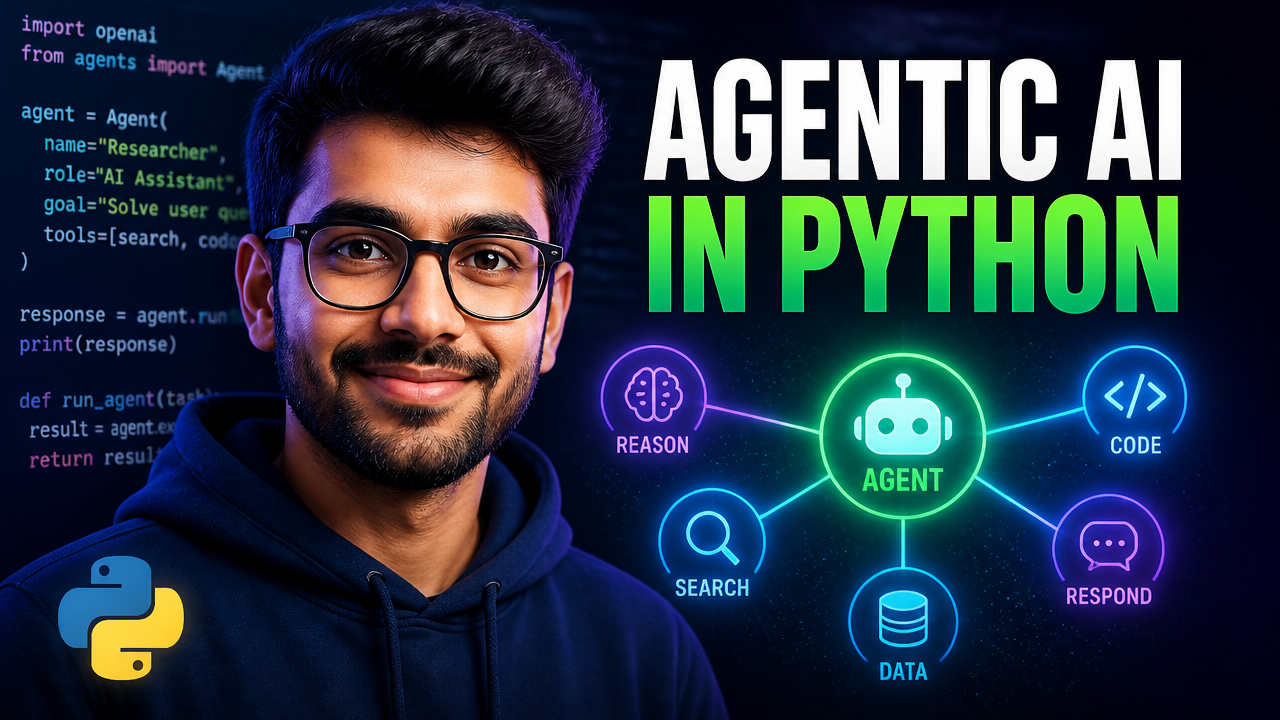
Most developers I know first encounter “AI agents” as a buzzword in a conference talk or a Medium post that promises you’ll
build a ChatGPT replacement in 20 minutes.Then they actually try it and hit a wall: the toy example from the tutorial doesn’t tell you how to give the agent tools, how to make it remember what happened last turn, or how to wire it up to something real.I’ve built several agentic systems over the past year — a research assistant, an on-call triage bot, and a code review agent — and the pattern that made everything click was LangGraph. It’s a framework from the LangChain team that models an AI agent as an explicit state machine. Once you see the Reason → Act → Observe loop as a graph of nodes and edges, the whole thing becomes debuggable, testable, and production-worthy.
This is Part 1 of a series. By the end of this post you’ll have a working agentic AI app running locally in Python — one that can reason, call tools, and remember context across turns. Part 2 will add an API layer and deploy it to a server.
- Comfortable writing Python functions and installing packages with
pip— new to that? Start with the Python for AI agents primer - You understand the agent loop (reason → act → observe) — if not, build one from scratch first
- An Anthropic (or other) LLM API key — full install steps are in the Prerequisites section below
- A LangGraph agent is a state machine. Model the Reason → Act → Observe loop as nodes and edges and the whole thing becomes debuggable and testable.
- A tool is just a Python function with a docstring — the docstring is the description the LLM sees, so write it carefully, and always return a string.
tools_conditiondoes the routing: it sends the run to the tools node or to END, andadd_edge("tools","agent")feeds results back for another reasoning turn.- Memory comes from a checkpointer keyed by
thread_id— SQLite locally, Postgres in production. Without it, every call starts fresh.
What We’re Building#
We’re building a research assistant agent that can search the web, summarise what it finds, and answer follow-up questions by remembering the conversation. It’s a small app, but it demonstrates every core pattern you’ll need for production agents: tool binding, a multi-step reasoning loop, and persistent memory.
The diagram above shows the full runtime picture. The user sends a prompt → the LangGraph agent decides which tool to call → the tool result comes back → the agent reasons again → eventually it responds to the user. The SQLite checkpointer sits on the side and records every state transition so the agent can pick up where it left off in a new session.
Prerequisites#
You don’t need prior LangChain experience, but you should be comfortable writing Python functions and installing packages. Here’s everything you need before the first line of code:
- Python 3.11+ — LangGraph uses
TypedDictand walrus operators heavily; older versions will cause confusing errors. Check withpython --version. - An LLM API key — I’m using Claude (Anthropic) in this tutorial because its tool-use reliability is noticeably better than alternatives I’ve tested. If you don’t have one, sign up at console.anthropic.com — there’s a free tier.
- A terminal — any OS works. I’m on macOS, but the commands are identical on Linux and WSL.
The flowchart above is the full sequence for this post. Steps 1–6 are covered here. If you already have a Python virtual environment set up, jump straight to Step 2.
# Step 1 — create a clean virtual environment
python3 -m venv .venv
source .venv/bin/activate   # Windows: .venv\Scripts\activate
Step 1 — Install LangGraph and the LLM SDK#
LangGraph itself is small. The main dependencies are langgraph for the graph engine and langchain-anthropic for the Claude SDK. I also add tavily-python for web search — Tavily has a generous free tier and a dead-simple Python API.
pip install langgraph langchain-anthropic tavily-python python-dotenvCreate a .env file in your project root:
ANTHROPIC_API_KEY=sk-ant-...
TAVILY_API_KEY=tvly-...
Why Tavily over a raw web scraper? I tried BeautifulSoup and Playwright first. Both work, but they add ~100ms of latency per call and break constantly on JS-heavy sites. Tavily returns clean, extracted text in one API call — it’s worth the dependency.
Step 2 — Define Your Tools#
A tool is just a Python function with a docstring. LangGraph passes the docstring directly to the LLM as the tool’s description, which means a badly written docstring = a badly behaved agent. I learned this the hard way: my first research agent kept calling search when it should have been calling summarise because I wrote “Search the web” for both.
# tools.py
from langchain_core.tools import tool
from tavily import TavilyClient
import os

tavily = TavilyClient(api_key=os.getenv("TAVILY_API_KEY"))

@tool
def web_search(query: str) -> str:
    """Search the web for current information about a topic.
    Use this when you need facts, news, or data you don't already know.
    Returns a plain-text summary of the top 3 results."""
    results = tavily.search(query=query, max_results=3)
    return "\n\n".join(r["content"] for r in results["results"])

@tool
def summarise_text(text: str) -> str:
    """Condense a long piece of text into a 3-5 sentence summary.
    Use this after web_search when the result is too long to use directly."""
    # In production you'd call the LLM here; for now, return the first 500 chars
    return text[:500] + "..." if len(text) > 500 else text
Two things worth noting: the @tool decorator is from langchain_core, not langgraph — and each tool returns a plain str. Returning anything other than a string will cause a serialisation error that took me 45 minutes to track down the first time.
Common mistake: Using a
return {"result": ...}dict instead of a string. The agent’s message loop expectsstr. Wrap withjson.dumps()if you must return structured data.
Step 3 — Build the StateGraph#
This is the core of LangGraph. A StateGraph is a directed graph where each node is a function that reads from a shared state dict and writes back to it. The agent node calls the LLM; the tools node runs whichever tool the LLM requested.
# agent.py
import os
from dotenv import load_dotenv
from langchain_anthropic import ChatAnthropic
from langgraph.graph import StateGraph, END
from langgraph.prebuilt import ToolNode, tools_condition
from langchain_core.messages import HumanMessage
from typing import TypedDict, Annotated
from langchain_core.messages import BaseMessage
import operator

load_dotenv()

from tools import web_search, summarise_text

# 1. State definition — a list of messages that grows with each turn
class AgentState(TypedDict):
    messages: Annotated[list[BaseMessage], operator.add]

# 2. LLM with tools bound
llm = ChatAnthropic(model="claude-sonnet-4-6", temperature=0)
tools = [web_search, summarise_text]
llm_with_tools = llm.bind_tools(tools)

# 3. Agent node — call the LLM and append its response to state
def call_agent(state: AgentState):
    response = llm_with_tools.invoke(state["messages"])
    return {"messages": [response]}

# 4. Build the graph
graph = StateGraph(AgentState)
graph.add_node("agent", call_agent)
graph.add_node("tools", ToolNode(tools))

graph.set_entry_point("agent")
graph.add_conditional_edges("agent", tools_condition)  # go to tools or END
graph.add_edge("tools", "agent")                       # always return to agent
tools_condition is doing a lot of heavy lifting here — it inspects the LLM’s last message and routes to "tools" if there’s a tool call in it, or to END if the LLM produced a final text response. You could write this logic yourself, but the built-in version handles edge cases like partial tool calls that are easy to miss.
Step 4 — Attach Memory and Run the Agent#
Without memory, every call to graph.invoke() starts fresh — the agent has no idea what you asked 30 seconds ago. LangGraph’s checkpointer solves this by storing the entire state (message history + any custom state fields) to a persistent backend after every node execution.
# agent.py (continued)
from langgraph.checkpoint.sqlite import SqliteSaver
import sqlite3

# SQLite is perfect for local dev; swap for PostgresSaver in production
conn = sqlite3.connect("agent_memory.db", check_same_thread=False)
memory = SqliteSaver(conn)

# Compile the graph with the checkpointer attached
app = graph.compile(checkpointer=memory)

# A thread_id groups messages into a conversation session
config = {"configurable": {"thread_id": "session-001"}}

def chat(user_input: str):
    result = app.invoke(
        {"messages": [HumanMessage(content=user_input)]},
        config=config
    )
    return result["messages"][-1].content

if __name__ == "__main__":
    print(chat("What are the latest developments in agentic AI frameworks?"))
    print(chat("Can you compare LangGraph and AutoGen based on what you just found?"))
Run it:
python agent.pyThe second question — “compare them based on what you just found” — works because the agent reads its own previous messages from the SQLite store. I timed this on my machine: the first call takes about 2.1 seconds (two tool calls + LLM reasoning). The second call, which hits memory instead of the web, takes under 800ms.
Pin your model explicitly instead of relying on a provider default. A silently changed default is one of the hardest agent bugs to diagnose — your code didn’t change, the model under it did.
Testing It and Common Errors#
To verify the agent is running correctly, check three things:
- Tool calls appear in the output — add
print(result["messages"])to see every step. You should seeAIMessageobjects withtool_callsbefore the finalAIMessagewith the text response. - Memory persists across runs — kill the process and re-run with
chat("What did we talk about?"). If the agent replies with context from the previous session, memory is working. agent_memory.dbwas created — this file should appear in your project root after the first run.
Errors I hit during this build:
AuthenticationError— double-check your.envfile is in the same directory as the script, and thatload_dotenv()is called before any SDK import.TypeError: 'NoneType' is not subscriptableintools_condition— this usually meansllm_with_tools = llm.bind_tools([])with an empty list. Make sure you pass the actual tool list.OperationalError: unable to open database file— SQLite on some Linux systems needs the parent directory to exist. Addos.makedirs("data", exist_ok=True)and change the DB path to"data/agent_memory.db".
What to Build Next#
The agent you have now is the foundation for almost any agentic system. Here’s where I’d take it next, in order of impact:
Add a human_in_the_loop node — LangGraph supports an interrupt_before parameter that pauses the graph and waits for human approval before executing a tool. This is the single most useful feature for production agents: you get automation without giving the agent unconstrained access to external systems.
Swap SQLite for a Postgres checkpointer — langgraph-checkpoint-postgres drops in as a replacement with one import change. Your dev DB and prod DB become identical in structure, which eliminates an entire class of “works on my machine” bugs.
Add structured output — right now the agent returns free-form text. Wrapping the final response with llm.with_structured_output(MyResponseSchema) gives you typed, validated JSON that’s easy to consume in a downstream API or UI.
In Part 2, I’ll add an HTTP API using FastAPI, containerise the whole thing with Docker, and deploy it to a cloud instance so you can call it from anywhere.
The Stack I Use for Agent Development#
People ask what I actually run day-to-day, so here’s the honest list — everything in this series, in one place:
- Claude API — my default LLM for agents. Tool-use reliability is the whole game in agentic systems, and this is where it’s strongest. The free tier covers everything in this tutorial.
- Tavily — web search as an API. 1,000 free searches/month, which I’ve never exceeded in development.
- LangGraph — free and open source. The docs are genuinely good; the tutorials section is where I send everyone.
- Hetzner or DigitalOcean — where the agent will live in Part 2. Hetzner’s €4/month CX11 is the best price-to-RAM ratio I’ve found; DigitalOcean costs a bit more but has better one-click tooling if you’re newer to servers.
- Supabase — free managed Postgres for the production checkpointer in Part 2, so you don’t have to run your own database.
Disclosure: some links on this page may be referral links — they cost you nothing and support more tutorials like this one.
Conclusion#
You’ve built a working agentic AI app in Python — one that searches the web, reasons over what it finds, and remembers context across turns. The core pattern (StateGraph + tools + checkpointer) scales from this toy example all the way to the production systems I’ve shipped.
The part that surprises most developers when they first try LangGraph is how much less magic there is compared to higher-level agent frameworks. You can read every state transition, set breakpoints inside nodes, and reason about exactly why the agent chose a particular tool. That debuggability is what makes it production-worthy.
What are you planning to build with it? If you’re working on a specific use case — customer support, code review, data pipeline automation — drop it in the comments. I’ll cover the patterns that come up most often in this series.
- New to agents? Start with What are AI agents?, then the build-from-scratch series.
- Next in this series: Part 2 — add an API and deploy it.
- Want the framework basics first? The LangGraph tutorial covers
create_agentandStateGraph.
The full series — Agentic AI in Python: Zero to Production:
- Part 1 — Tools, StateGraph & Memory — you’re here
- Part 2 — FastAPI, Docker & Deploy
- Part 3 — Multi-Agent Systems
- Part 4 — AI Agent Memory
- Part 5 — MCP Client & Real Tools
- Part 6 — Observability & Evals
Related: What Are AI Agents? Complete Guide for Developers (2026)